WordPress powers an astounding 40% of the web. From personal blogs to major brand websites, its versatility and customizability make it the go-to platform for millions. But the real magic lies in its ability to be tailored precisely to your vision. That’s where WordPress customization comes into play.
Whether you’re a beginner looking to design a website that truly stands out, or a developer eager to experiment with advanced features, mastering customization is essential. This guide will walk you through every step, from themes and plugins to safely modifying files and optimizing performance. By the end, you’ll be equipped to transform your WordPress site into something uniquely yours.
Here’s what we’ll cover:
- WordPress themes and plugins.
- Customizing themes vs. creating child themes.
- Essential plugins to boost your site’s functionality.
- Safely modifying WordPress files.
- Optimizing performance for a polished user experience.
Roll up your sleeves as we simplify the customization process, even if you’re new to web design.
1. Understanding WordPress Themes and Plugins
If WordPress is the engine of your website, themes and plugins are the components that make it functional and visually appealing.
What Are Themes and Plugins?
- Themes control your website’s design and layout. They dictate how elements like headers, sidebars, and fonts appear.
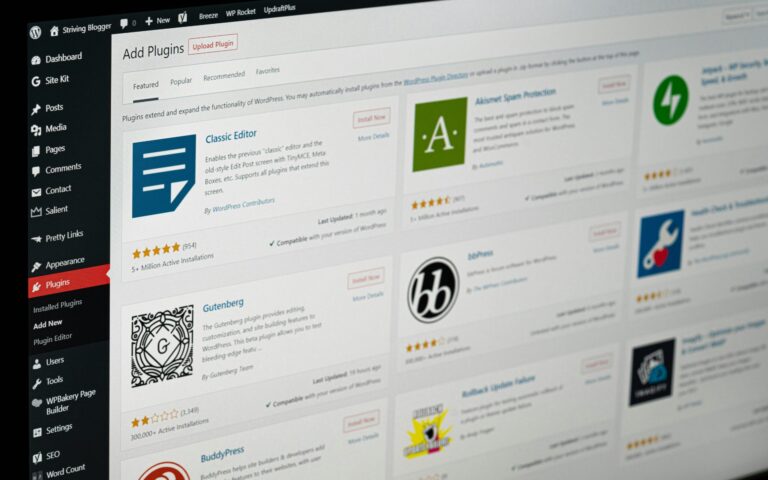
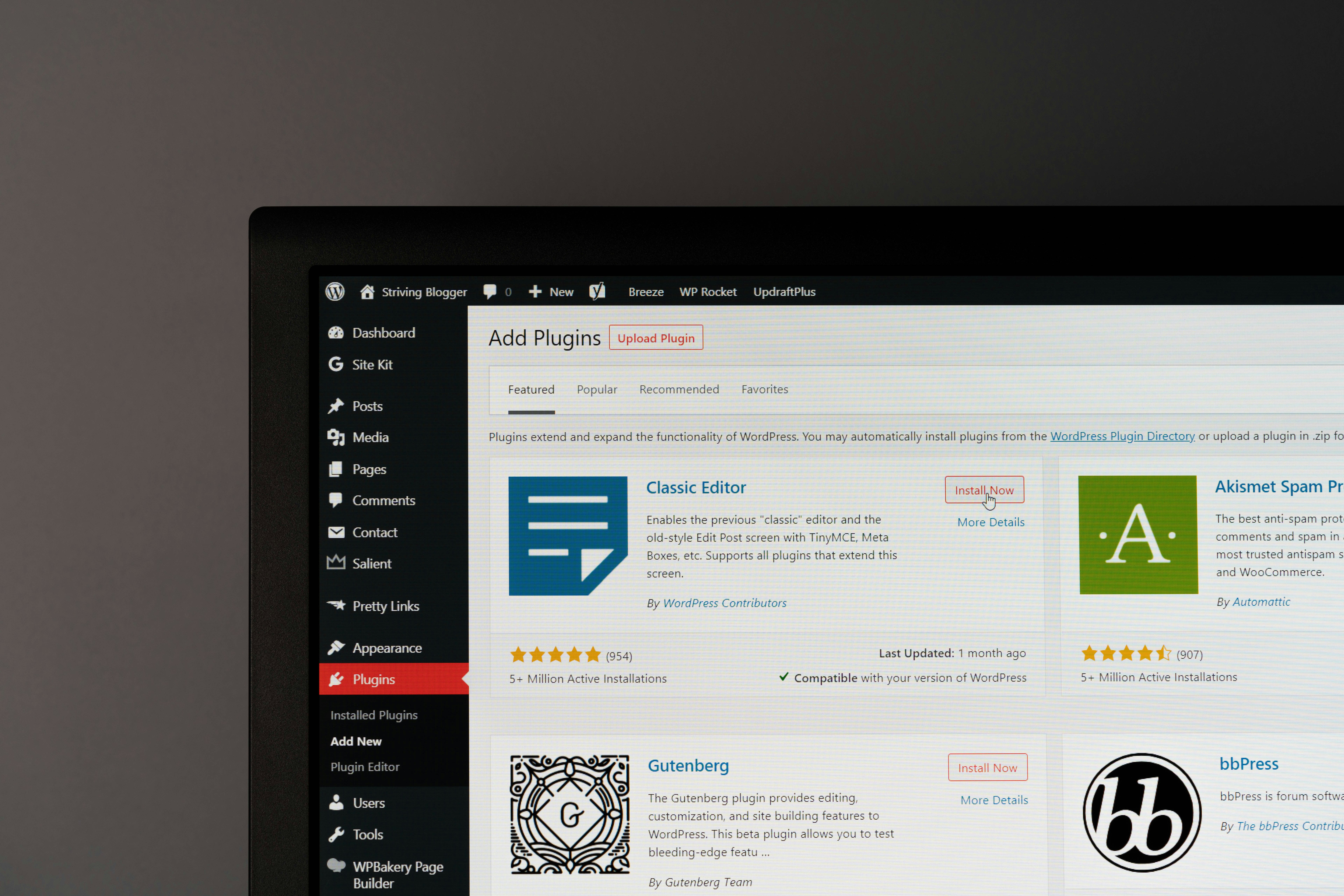
- Plugins enhance your site with additional features, like e-commerce functionality, SEO optimization, or interactive forms.
Imagine pairing a theme like Astra or Divi with powerful plugins like Elementor (for drag-and-drop design) or Yoast SEO (for optimization). Together, they unlock endless customization opportunities.
Free vs. Premium Options
- Free Themes/Plugins are cost-effective but often limited in functionality.
- Premium Themes/Plugins offer advanced features, better support, and regular updates. They’re worth the investment to achieve a professional look and feel.
WordPress also comes with a Customizer Tool, allowing you to adjust settings like fonts, colors, and layouts without needing to touch a single line of code. Tools like this empower beginners to make changes confidently.
2. Customizing Themes vs. Creating Child Themes
Before making a theme your own, it’s important to know the difference between direct theme customization and creating child themes.
Why Use a Child Theme?
Directly modifying a theme can lead to trouble when updates overwrite your customizations. A child theme solves this by storing your changes separately.
How to Create a Child Theme
- Access Your WordPress Files:
Use FTP (File Transfer Protocol) or cPanel to access your WordPress setup.
- Create a New Folder:
Name the folder based on the parent theme (e.g., twentytwentyone-child).
- Add a
style.cssFile:
Inside the folder, create a style.css file and include details like the theme name and template (e.g., Template: twentytwentyone).
- Activate the Child Theme:
Go to your WordPress dashboard under “Appearance” → “Themes,” and activate your child theme.
With this setup, you can tweak code like CSS or templates without risking your hard work.
Pro Tip: Child themes are perfect for advanced WordPress customization tasks like modifying layouts or adding custom scripts.
3. Essential Plugins for Enhanced WordPress Customization
Plugins are the secret sauce that elevates your WordPress site from functional to extraordinary.
Must-Have Plugins
- Elementor: A drag-and-drop page builder for visually stunning designs without coding.
- Yoast SEO: Helps optimize your website’s content for search engines and improves readability.
- WooCommerce: Makes setting up an online store simple.
- UpdraftPlus: Automatically backs up your site to ensure your data is safe.
- WP Rocket: A powerful caching plugin for faster load times.
Choosing the Right Plugins
Before installing, always check these:
- Compatibility with your WordPress version.
- Plugin Reviews and Ratings.
- Last Updated Date to ensure it’s actively maintained.
Keep your plugins updated and uninstall unused ones to avoid performance issues.
4. Modifying Core WordPress Files Safely
Editing core files can lead to a broken site or lost work after updates. Instead, use safe practices like hooks or staging sites.
Best Practices for File Modifications
- Avoid Direct Edits to critical files like
wp-config.phporfunctions.php. - Use action and filter hooks to insert custom functionality.
- Create a Backup before making any changes, using plugins like UpdraftPlus.
Common Customization Tasks
- Adding Functions:
Use the functions.php file in your child theme for things like custom menus or additional widget areas.
- Styling Adjustments:
Modify the style.css file for personalized design tweaks.
Working on a staging site ensures your experiments won’t disrupt your live website.
5. Tips for Optimizing Performance After Customization
A customized site is great, but performance matters just as much. A slow website can drive visitors away and hurt your SEO rankings.
Key Optimization Tips
- Optimize Images:
Tools like TinyPNG reduce file size without compromising quality.
- Enable Caching:
Fast-track your site’s load time by using plugins like W3 Total Cache or WP Rocket.
- Use a CDN:
Services like Cloudflare improve speed by delivering site content from servers closer to end users.
- Test Load Speeds:
Analyze performance with tools like Google PageSpeed Insights or GTmetrix.
Consistent optimization ensures a seamless user experience.
Take Your WordPress Customization to the Next Level
Mastering WordPress customization takes time, creativity, and a willingness to learn. By following these steps, you can craft a website that is both functional and uniquely yours.
Whether you’re a beginner experimenting with plugins or a developer building custom themes, the ability to personalize WordPress is a valuable skill that pays off. Start with small adjustments, then gradually explore advanced features like child themes and hooks to expand your expertise.
For more tips, tutorials, and expert advice, subscribe to our blog or join our community forums. Don’t just build a website; create a digital masterpiece with WordPress customization.